








27 Best remote team software tools for collaboration in 2026
 Vivienne ChenFeb 02, 2026
Collaborate with your remote team using Assembly
Assembly gives your team one place for tasks, files, messages, and client work. Try it for free!
4.9 rating
- 27 Best remote team software in 2026: At a glance
- 1. Assembly: Best for service teams collaborating on client projects
- 2. Slack: Best for instant messaging and communication
- 3. Microsoft Teams: Best for teams using Microsoft 365
- 4. Zoom: Best for video meetings and webinars
- 5. Google Workspace: Best for real-time document collaboration
- 6. Asana: Best for structured workflows with clear dependencies
- 7. Monday.com: Best for visual project tracking
- 8. ClickUp: Best for detailed task control
- 9. Notion: Best for flexible workspaces for docs and databases
- 10. Miro: Best for visual brainstorming and whiteboarding
- Special mentions
- How I tested these remote team software tools
- Which remote team software tool should you choose?
- My final verdict
- How Assembly supports remote team collaboration
- Frequently asked questions
After testing remote team software across workflows, I found 27 platforms that cover communication, project management, time tracking, and file collaboration in 2026.
27 Best remote team software in 2026: At a glance
The tools below cover the core needs of remote teams, from communication to project work. Here's how they compare side by side:
1. Assembly: Best for service teams collaborating on client projects
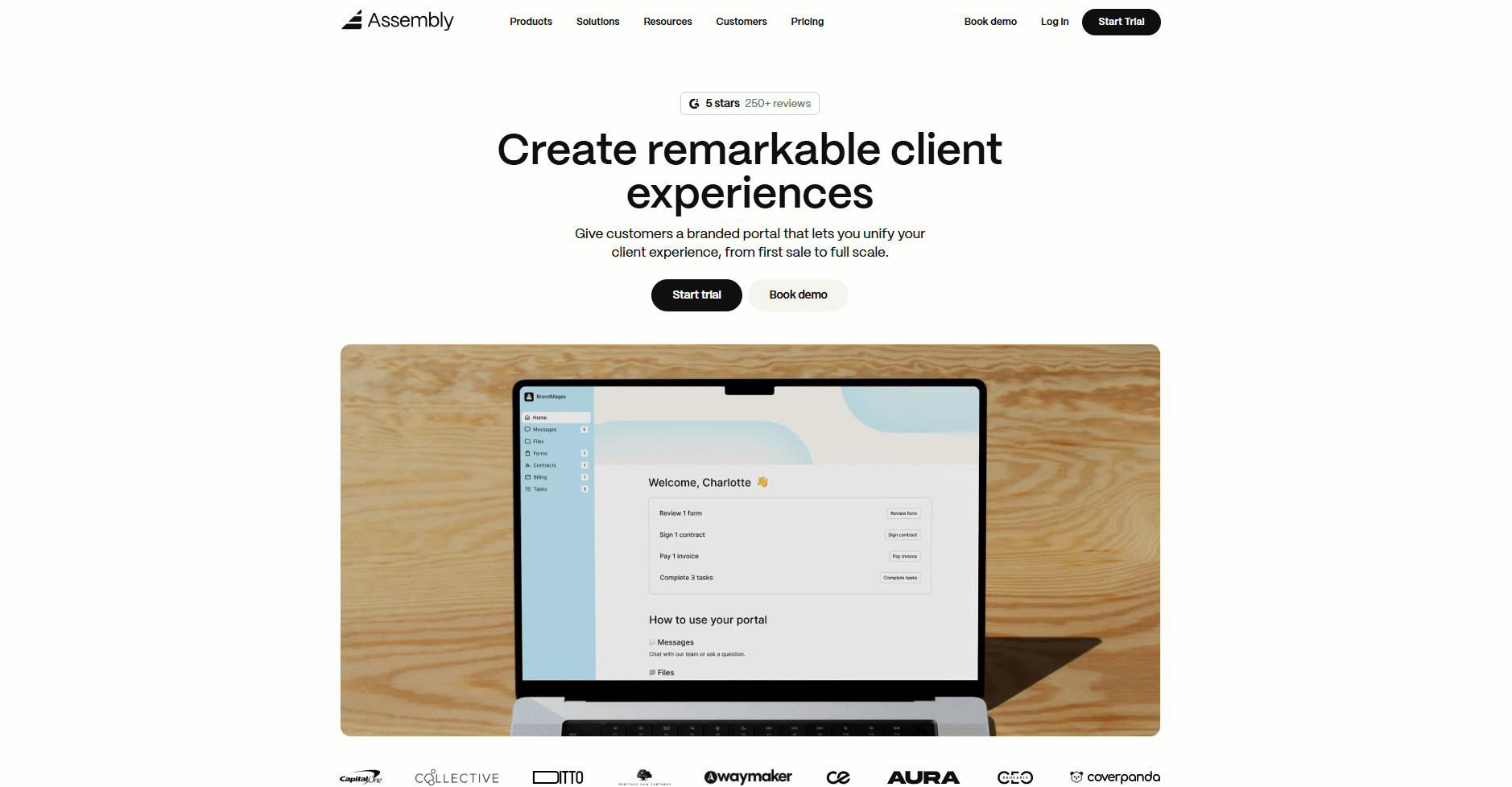
- What it does: Assembly is a client portal software tool that connects task management, messaging, file sharing, contracts, and billing in one workspace. Service teams use it to coordinate client projects, manage communication, and track deliverables without switching between multiple tools.
- Who it's for: Agencies and service-based firms that handle client projects and want to keep team collaboration and client updates organized in one system.
We built Assembly to help remote service teams manage client projects without losing context across scattered tools. Every client gets a dedicated record where project tasks, shared files, contract approvals, and payment history stay connected. Your team can prep internally using custom fields, private chat, and internal notes before sharing the portal with clients. That way, everything is ready when the client arrives.
Once the portal goes live, it becomes the central space for project coordination. Your team can use the Tasks App to assign work and track progress, the Files App to share deliverables for review, and the Messages App to keep all communication in one thread. Clients know where to check updates, and your team avoids digging through email threads to find what was discussed or approved.
Our AI Assembly Assistant adds support by summarizing recent activity and surfacing next steps, which helps you prep for project check-ins faster.
You can also connect Assembly with tools like Airtable, ClickUp, Calendly, Zapier, and Make to automate project workflows across platforms your team already uses.
Key features
- Task management: Assign work, set deadlines, and track project progress across your remote team
- Client portals: Share project updates, deliverables, and status through a branded workspace that clients can access
- Integrations: Connect with Airtable, ClickUp, Calendly, Zapier, and Make to sync project data across tools
- Team collaboration: Use internal notes, private chat, and shared files so your team stays aligned before client reviews
- AI Assistant: Get quick summaries of recent client communication and project activity for faster prep
Pros
- Keeps client projects and internal coordination in one connected system
- Reduces tool switching by combining CRM, tasks, messaging, and billing
- Creates a clear client experience with portal access and linked project updates
Cons
- Includes client portal and CRM features beyond task tracking, which increases the price
- More features than teams need if they only track internal projects
Pricing
Assembly starts at $39 per month.
Bottom line
Assembly connects client projects, team tasks, and communication in one branded workspace that remote service teams can access from anywhere. If your team manages internal projects without client interaction, ClickUp might be a better fit.
2. Slack: Best for instant messaging and communication
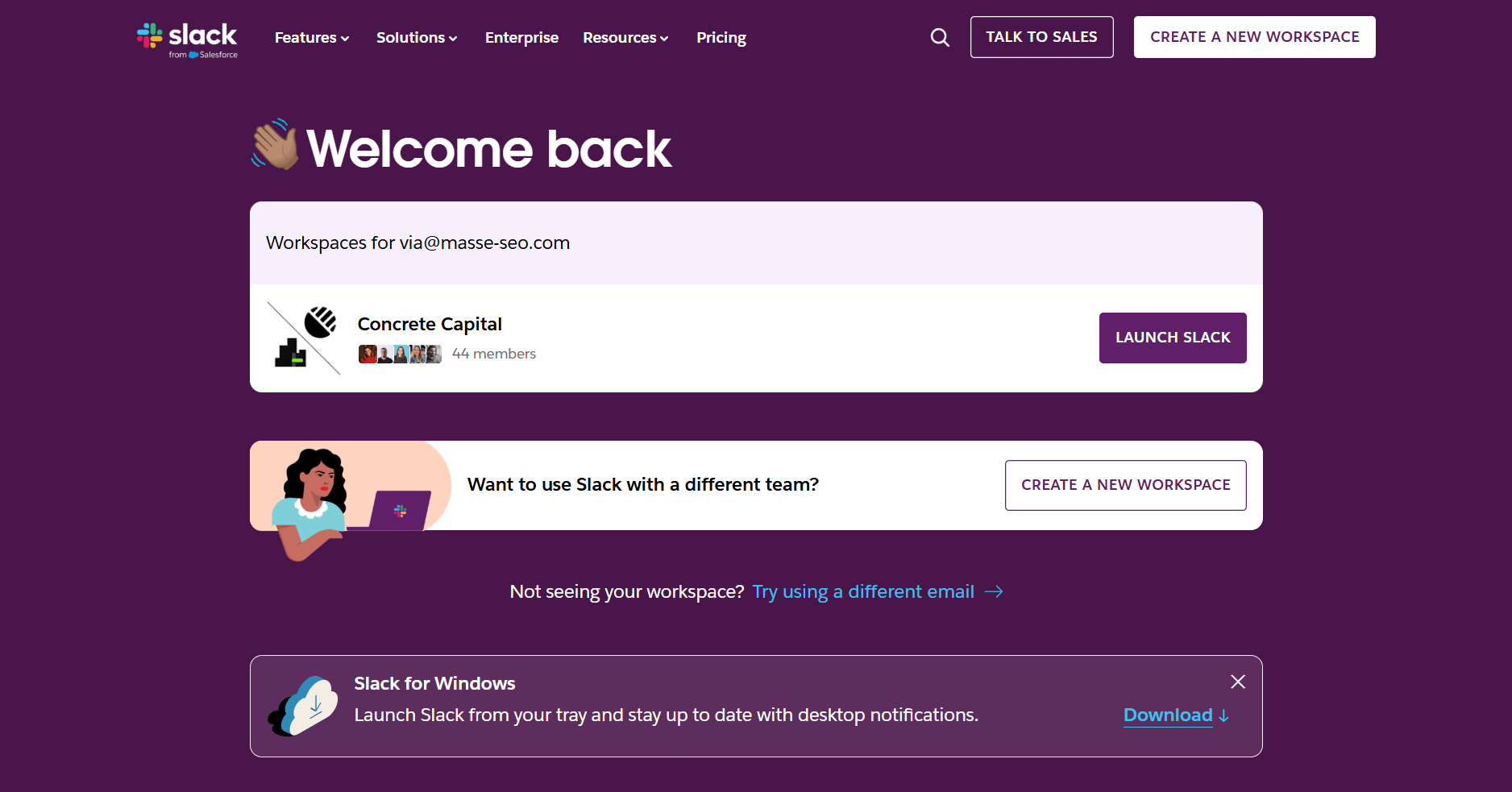
- What it does: Slack provides real-time messaging through channels, direct messages, and threads for remote teams. It includes file sharing, video calls, and integrations with thousands of apps.
- Who it's for: Remote teams that rely on fast, organized communication.
Slack organizes team messages into channels that work like dedicated spaces for different topics. I've used it off and on over the years, and I've always liked that the channel setup helps me follow relevant conversations without scrolling through unrelated updates. I'm not the biggest fan of the threaded replies, but I can see why they're useful and necessary.
The search feature works well for finding older conversations using keywords and filters. I've always found it handy for keeping track of what's been said before.
Another thing I like about Slack is how many tools you can connect directly to channels. Integrations with Google Drive, Asana, and Zoom mean I can access files or start calls without leaving the conversation.
Key features
- Channels and threads: Organize conversations by topic and keep replies grouped to avoid clutter
- Search and filters: Find past messages, files, and links using keywords or date ranges
- Integrations: Connect with over 2,600 apps
Pros
- Keeps team communication organized by topic without mixing unrelated threads
- Strong search makes it easy to find past decisions or shared files
- Large integration library reduces app switching during active work
Cons
- Free plan limits message history to 90 days
- High message volume can make it hard to prioritize what needs attention
Pricing
Slack starts at $8.75 per month, billed monthly.
Bottom line
Slack organizes team messages by topic and makes past conversations easy to find, which helps remote teams stay on the same page. If your team runs most communication through video calls, Microsoft Teams might be a better choice.
3. Microsoft Teams: Best for teams using Microsoft 365
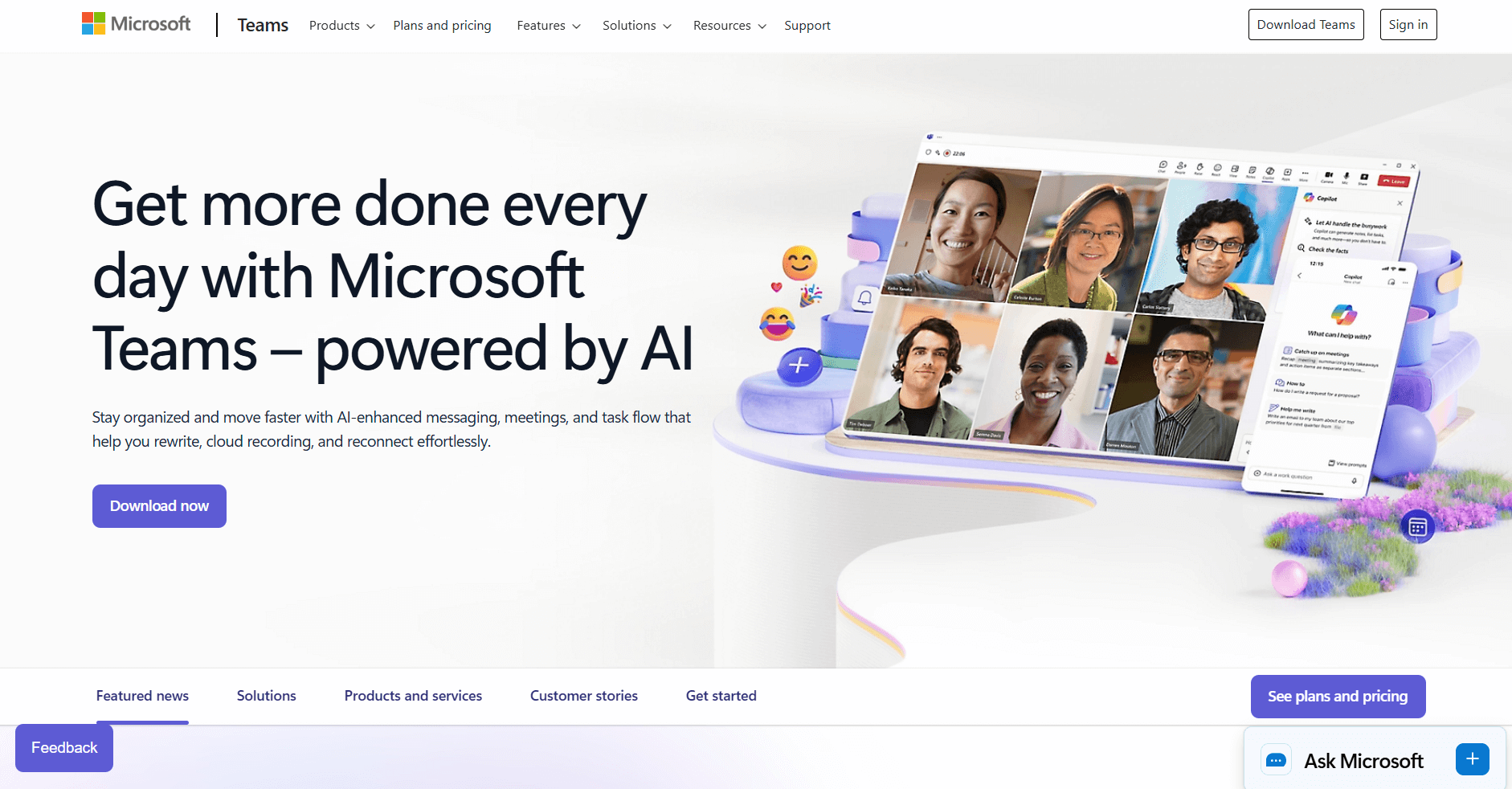
- What it does: Microsoft Teams combines chat, video calls, and file collaboration in one platform that works with Office apps. It lets teams work on documents together without leaving the workspace.
- Who it's for: Remote teams that already use Microsoft 365 and want communication tools built into their setup.
The first thing I noticed about Microsoft Teams was how well it connected with Office files. I could open a Word doc someone shared in chat, edit it with others in real time, and see changes update without downloading anything. The integration removed extra steps that usually slow down document work.
I tested the video call features by running a few meetings with screen sharing and breakout rooms. The quality stayed stable, and switching between chat and calls happened quickly. Teams also keeps chat history tied to specific projects or channels, which made it easier to find past decisions.
One thing to note is that Teams works better if your organization already uses Microsoft 365. Teams that don't may find the setup less straightforward than standalone tools.
Key features
- Office integration: Edit Word, Excel, and PowerPoint files directly in Teams without switching apps
- Video calls and meetings: Run video conferences with screen sharing, breakout rooms, and recording
- Channels and chat: Organize conversations by team or project and keep messages searchable
Pros
- Tight connection with Microsoft 365 reduces file switching for Office users
- Video calls and chat work together without needing separate tools
- Keeps project conversations and files linked in one space
Cons
- Works better for teams already using Microsoft 365
- Interface can feel crowded when managing many channels and chats
Pricing
Microsoft Teams starts at $4 per user per month.
Bottom line
Teams lets you edit Office files directly in chat without downloading them first, which saves time for remote teams working on documents. If your team doesn't use Office 365 and prefers simpler messaging without document editing, Slack offers a lighter setup.
4. Zoom: Best for video meetings and webinars
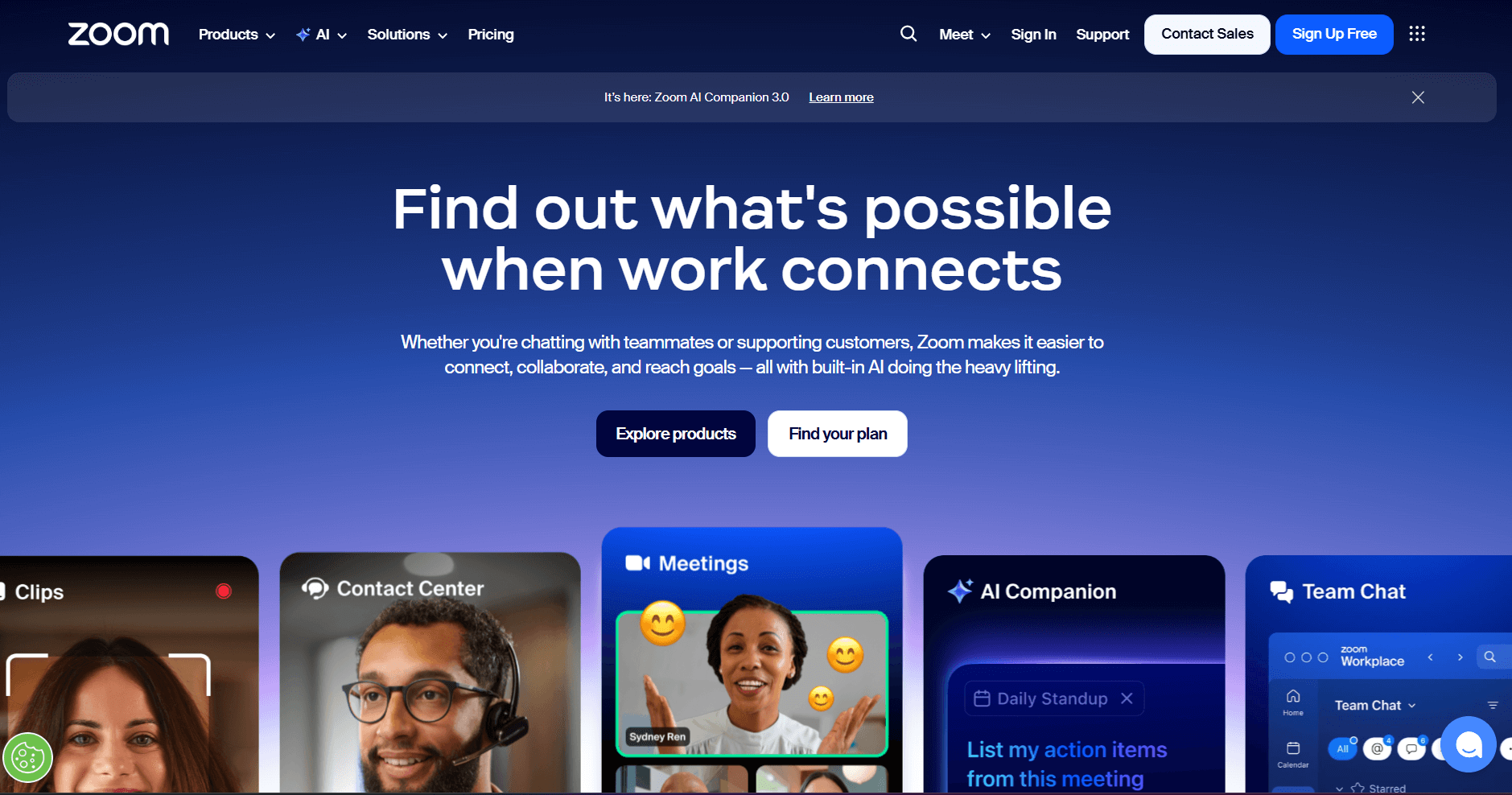
- What it does: Zoom provides video conferencing with HD quality, screen sharing, and recording. It supports meetings from small team calls to large webinars with thousands of participants.
- Who it's for: Remote teams that run regular video meetings and need reliable call quality with recording options.
I've used Zoom for years, and breakout rooms have been one of the most useful features for running workshop-style sessions. They make it easy to split larger groups into smaller discussions. I like that I can use video filters and virtual backgrounds to control how I appear without worrying about my actual background.
Recording meetings to the cloud or local storage has been straightforward. Cloud recordings stay accessible through the dashboard, while local files save directly to my computer without extra steps.
Key features
- HD video and audio: Supports clear calls with up to 1,000 participants on higher plans
- Virtual backgrounds and filters: Control your appearance without changing your physical space
- Webinar mode: Host large-scale presentations with Q&A and polling features
Pros
- Connection stays stable across different internet speeds
- Recording options work for both immediate playback and long-term storage
- Webinar features support large audience presentations beyond standard meetings
Cons
- Free plan limits group meetings to 40 minutes
- Large meetings require higher-tier plans
Pricing
Zoom starts at $13.33 per user per month.
Bottom line
Zoom handles video quality and connection stability well, which matters when remote teams run frequent calls with screen sharing and recording. If your team needs video calls built into a larger collaboration platform with file editing, Microsoft Teams combines both in one workspace.
5. Google Workspace: Best for real-time document collaboration
- What it does: Google Workspace provides cloud-based apps for documents, spreadsheets, presentations, email, and file storage. Multiple people can edit the same file at the same time and see changes as they happen.
- Who it's for: Remote teams that collaborate on documents and need everyone to access and edit files from any location.
I've used Google Workspace for both personal and professional work over the years, and I've always liked the real-time editing. When multiple people open the same document, I can see what everyone's typing as it happens. The version history is helpful for tracking who made what changes without chasing people down for updates.
I like that files sync automatically across devices. I can start a document on my laptop and pick it up on my phone without thinking about manual uploads. The commenting feature has also been useful for keeping feedback inside documents instead of creating separate email threads about edits.
Key features
- Gmail and Calendar integration: Connect email and scheduling with document work in one platform
- Cloud storage: Store up to 30GB (or more on higher plans) accessible from any device through Google Drive
- Shared drives: Organize team files in shared spaces with permission controls
Pros
- Works across personal and professional contexts without separate accounts
- Offline mode lets you edit documents without an internet connection
- Mobile apps match desktop functionality for remote work flexibility
Cons
- Works better when the whole team uses Google tools
- File format issues can occur when working with Microsoft Office users
Pricing
Google Workspace starts at $7 per user per month.
Bottom line
Google Workspace removes the back-and-forth of sending document versions by email, letting remote teams edit files together in real time. If your team already works in Microsoft 365 and needs tighter Office integration, Microsoft Teams might be a better fit.
6. Asana: Best for structured workflows with clear dependencies
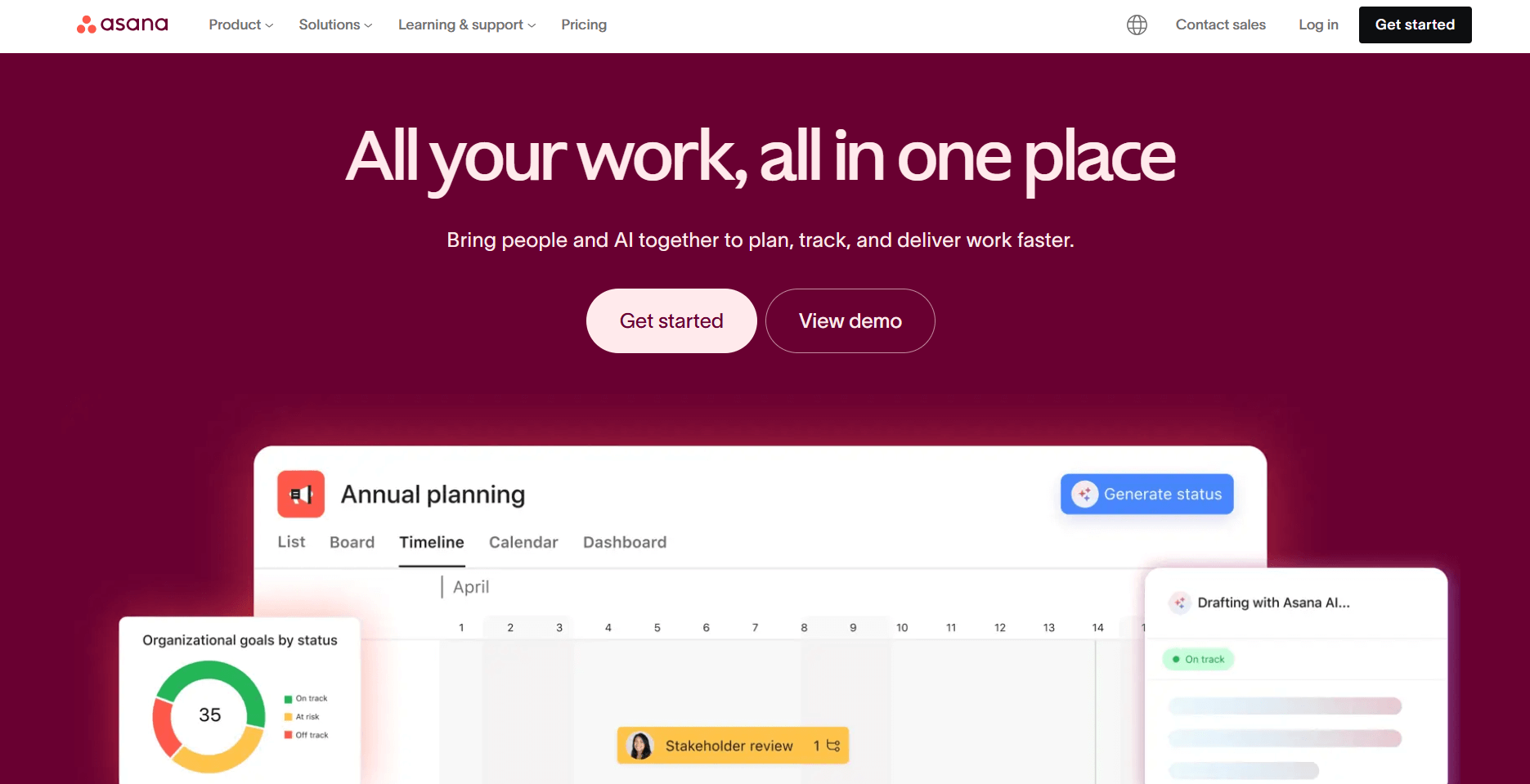
- What it does: Asana provides task management with timeline views, dependencies, and templates for organizing project work. Teams can see how tasks connect and track progress across multiple projects.
- Who it's for: Remote teams that need structured workflows and want to see how tasks relate to each other.
Asana is another tool I have extensive experience with personally and professionally. The dependency feature has helped me catch scheduling conflicts before they became real problems. When I set up a task that depends on another finishing first, Asana shows how delays in one area affect everything downstream.
The timeline view gives a clear picture of how work spreads across weeks or months. I like that I can see multiple projects at once without switching between separate boards, and the portfolio view makes it easy to check status across all my active work. Custom fields have also been useful for tracking things like priority or budget without cluttering task titles.
Key features
- Task dependencies: Link tasks so delays in one automatically adjust related deadlines
- Multiple project views: See work in list, board, timeline, calendar, or Gantt formats
- Workflow templates: Save and reuse project structures for recurring work
Pros
- Shows how task delays affect the rest of the project schedule
- Template library speeds up setup for repeat workflows
- Portfolio view helps track multiple projects in one place
Cons
- Custom templates require setup time to build properly
- Can feel rigid for teams that work without structured processes
Pricing
Asana starts at $10.99 per user per month.
Bottom line
Asana's portfolio view lets you track status across multiple projects in one place, which helps when your remote team juggles several workstreams at once. If your team works on one project at a time and doesn't need cross-project visibility, Trello might suit you better.
7. Monday.com: Best for visual project tracking
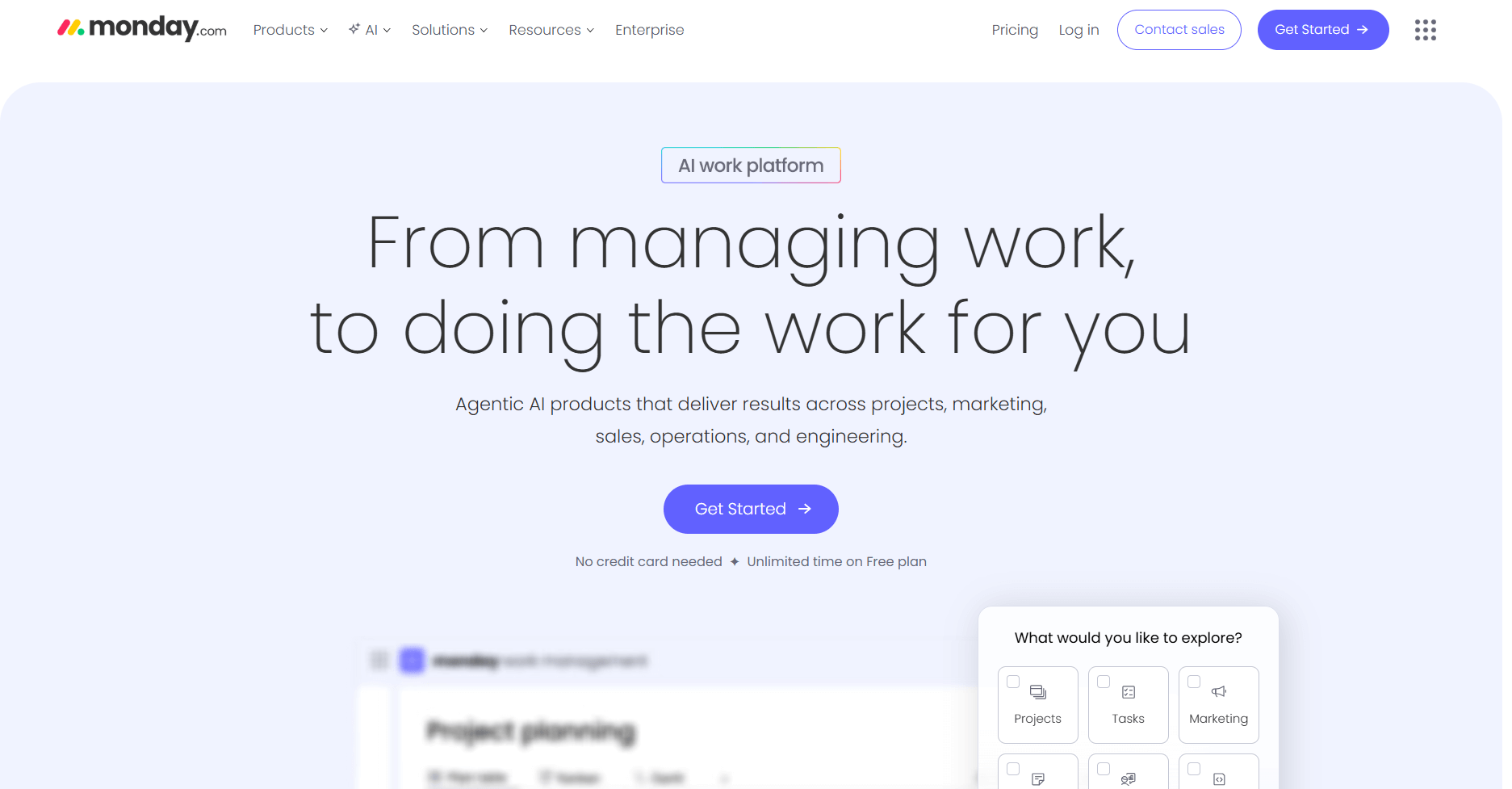
- What it does: Monday.com provides customizable boards with color-coded columns, automation, and multiple view options for tracking project work. Teams can switch between views based on what they need to see.
- Who it's for: Remote teams that want visual project tracking with flexible board layouts.
The first thing I noticed when testing Monday.com was how color coding made it easy to spot project status at a glance. I set up boards for different workflows and used the color columns to track which tasks were stuck, in progress, or done.
I found the dashboard feature useful for pulling data from multiple boards into one view. This helps when teams manage several projects and need to see blocked tasks, overdue work, and workload distribution across projects. The integrations with tools like Slack and Google Drive keep notifications and files connected to the right tasks.
One limitation I found is that heavy customization can make boards complex. Teams new to Monday.com may need time to figure out which columns and automations actually help versus adding clutter.
Key features
- Color-coded boards: Use visual columns to track task status and priority across projects
- Automations: Set up triggers for status changes, notifications, and task assignments
- Multiple views: Switch between board, timeline, calendar, and chart layouts
Pros
- Dashboards pull data from multiple boards for team-wide visibility
- Templates speed up board creation for common workflows
- Mobile app keeps boards accessible for remote team members on the go
Cons
- Heavy customization can create cluttered boards
- Learning curve for teams figuring out which features to use
Pricing
Monday.com starts at $12 per seat per month, with a minimum of 3 seats.
Bottom line
Monday.com lets you build custom automations without code, which reduces manual status updates when remote teams move tasks through stages. If your team doesn't need automation and prefers straightforward task lists, Notion offers flexible workspaces with a simpler setup.
8. ClickUp: Best for detailed task control
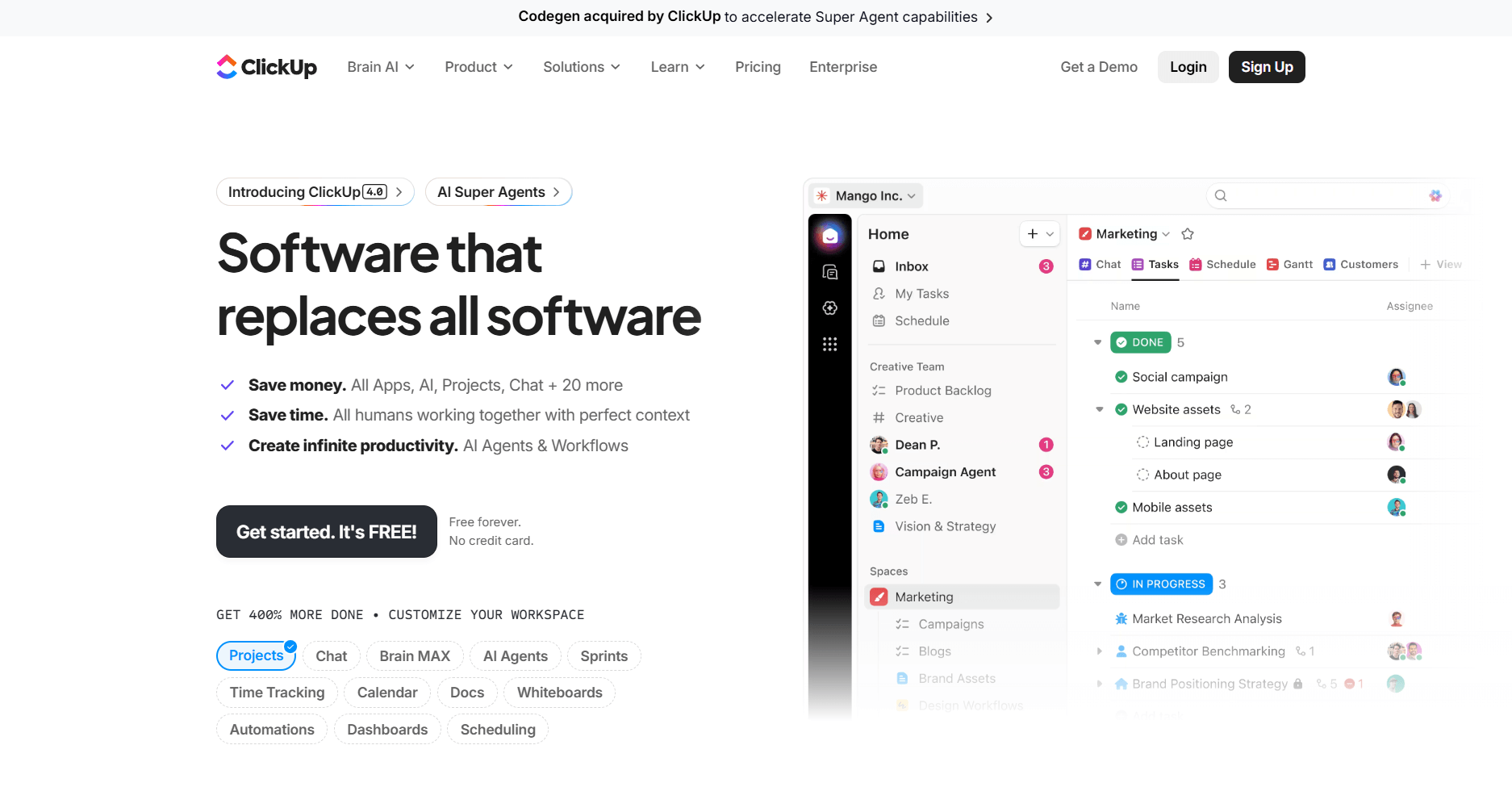
- What it does: ClickUp is a task management tool with custom fields, multiple project views, and built-in docs and goals. Teams can organize work in lists, boards, timelines, or calendars based on what they need to see.
- Who it's for: Remote teams that want to control how they structure and display tasks in detail.
I tested ClickUp by building out a project with multiple task layers to see how the hierarchy worked. The space and folder structure let me organize work by department, then break it down into smaller projects and task lists. This level of organization worked well for complex projects, but it took time to set up the structure.
I also tested the custom statuses feature by creating workflow stages specific to different project types. Being able to define exactly what "in review" or "blocked" meant for each workflow helped clarify where tasks actually stood. The templates saved some setup time, but I still needed to adjust fields and views to match how I wanted things organized.
Key features
- Custom fields and statuses: Add specific data points and workflow stages to match your process
- Multiple project views: Switch between list, board, calendar, timeline, and Gantt chart layouts
- Built-in docs and goals: Create documentation and track objectives in the same workspace
Pros
- Hierarchy structure supports complex project breakdowns with folders and lists
- Custom statuses clarify what each workflow stage means for different projects
- The templates library includes options for various team types and workflows
Cons
- Initial setup requires decisions about structure and features to use
- Can feel overwhelming for teams that prefer simple task lists
Pricing
ClickUp starts at $7 per user per month.
Bottom line
ClickUp's hierarchy lets you nest projects within folders and spaces. This helps when remote teams manage work across departments or multiple clients. If your team handles simpler projects without complex organization needs, Trello might be a better fit.
9. Notion: Best for flexible workspaces for docs and databases
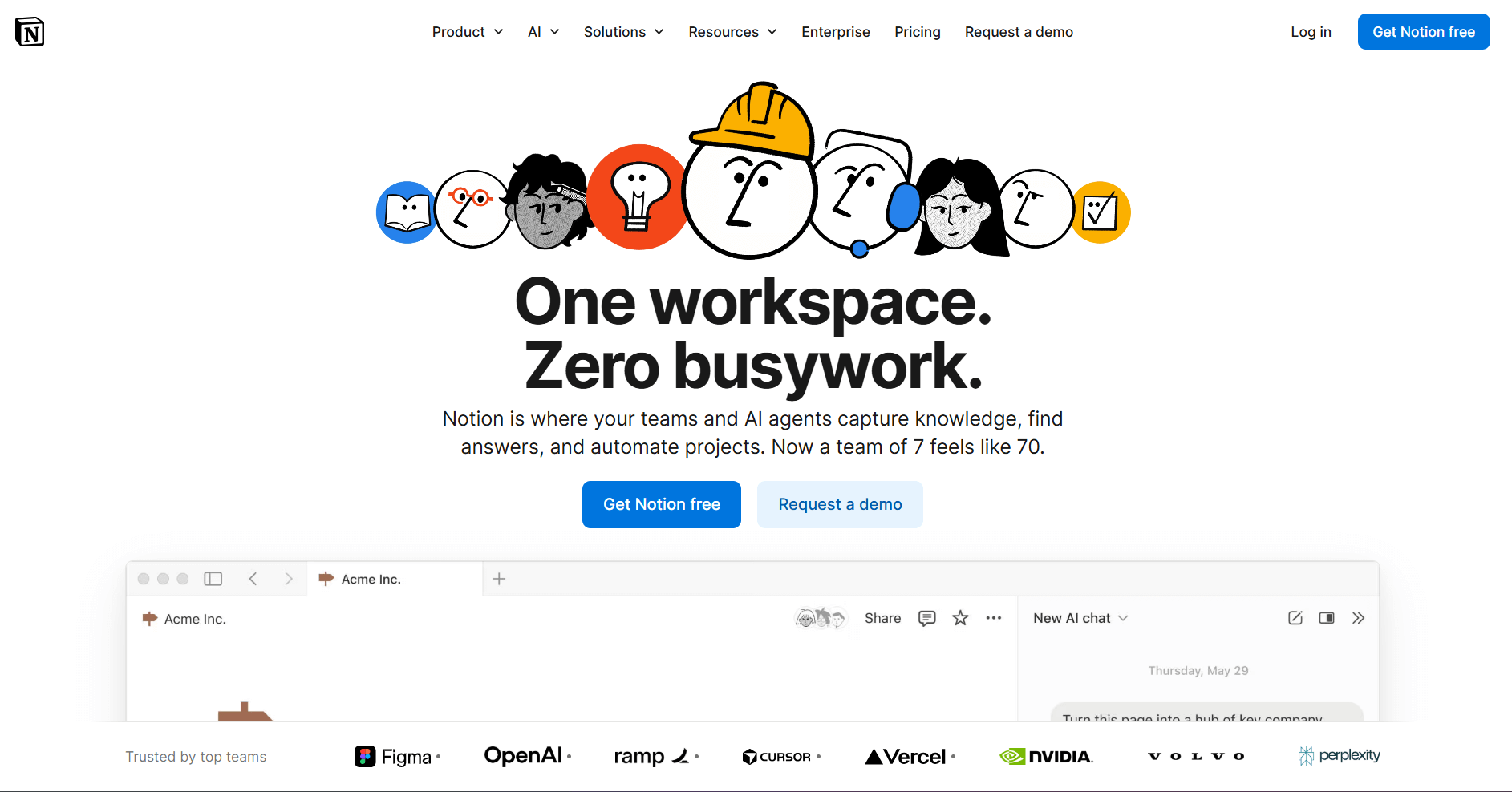
- What it does: Notion combines documents, databases, and wikis in one workspace where you can link pages together. Teams can build custom layouts for notes, project tracking, and knowledge management.
- Who it's for: Remote teams that want a flexible workspace for documentation.
I've used Notion for various projects over the years, and the linking feature is what I find most valuable. I can create a page for a project brief, link it to a database of tasks, and connect both to a master wiki. This web of connections keeps related information accessible without duplicating content across multiple places.
The database views let me see the same information as a table, board, calendar, or timeline, depending on what I need. I like that I can switch views without changing the underlying data. I also like that Notion supports offline editing for pages you've made available offline, and they sync automatically when your connection returns.
Key features
- Linked pages and databases: Connect information across pages so updates appear everywhere the content is referenced
- Multiple database views: Display the same data as tables, boards, calendars, timelines, or galleries
- Templates and AI features: Use pre-built layouts and AI assistance for writing and organizing content
Pros
- Linking system keeps related pages and databases connected across your workspace
- Flexible enough to handle everything from meeting notes to project wikis
- Mobile app supports full editing, not just viewing
Cons
- Learning curve for understanding how pages, databases, and relations work
- Can become disorganized without clear, structured decisions upfront
Pricing
Notion starts at $10 per member per month.
Bottom line
Notion is a great choice if you're building knowledge bases that grow with your team. If you're looking for task tracking with timelines and dependencies, Asana handles that better.
10. Miro: Best for visual brainstorming and whiteboarding
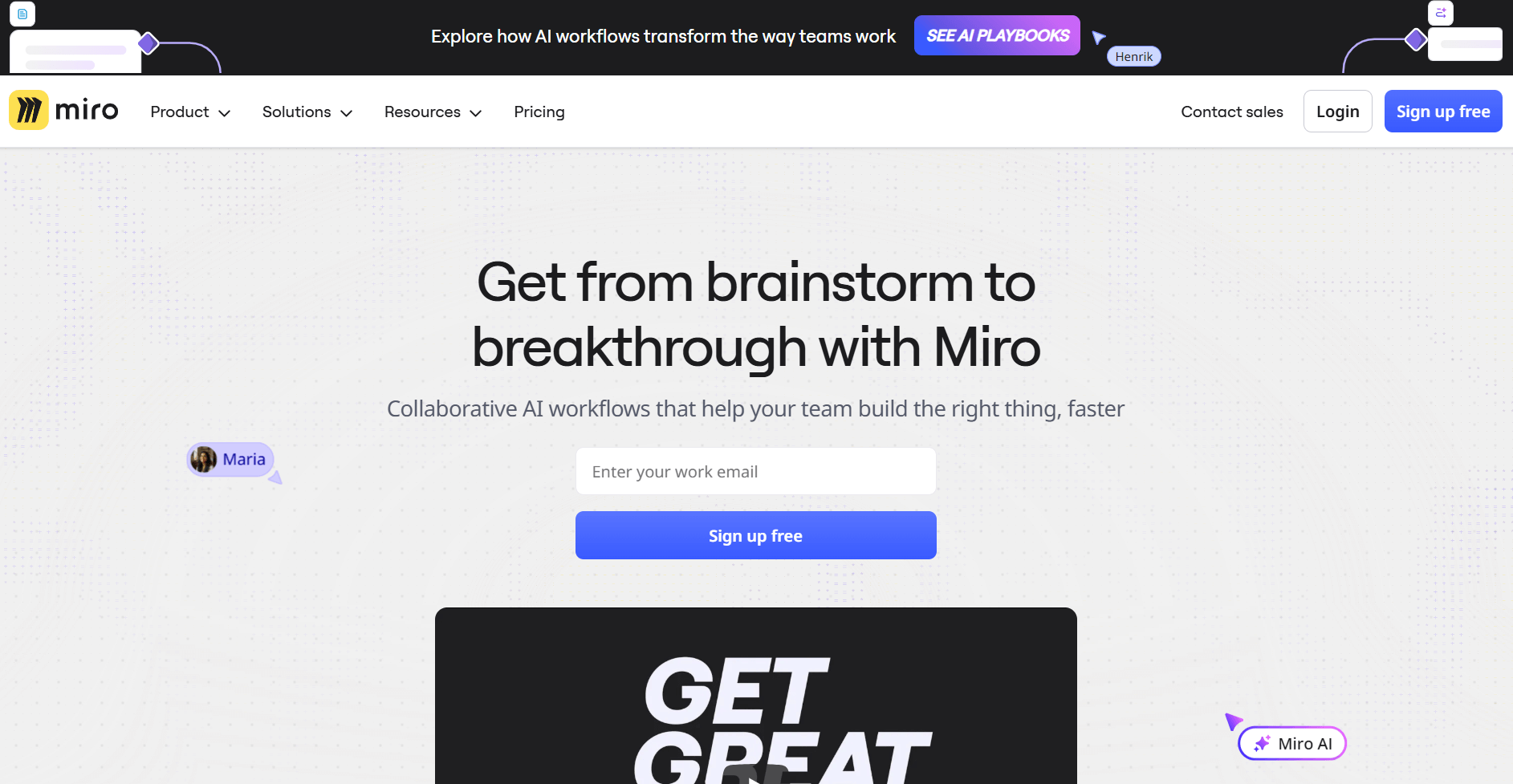
- What it does: Miro provides an infinite digital canvas where teams can add sticky notes, diagrams, drawings, and frameworks for brainstorming and planning. Multiple people can work on the same board at once.
- Who it's for: Remote teams that brainstorm visually and need a shared space for mapping ideas, workflows, or processes.
The infinite canvas in Miro works like the one in Apple's Freeform, giving you unlimited space to build out ideas. I set up a board using sticky notes for a brainstorming session and found that the freeform layout worked well for early-stage thinking.
The template library includes frameworks for retrospectives, customer journeys, and mind maps, which sped up setup for common workshop formats. I also tested the presentation mode by turning a board into a slideshow. It worked well for walking through ideas with stakeholders, but it’s not as but it's not as feature-rich as true presentation tools.
Key features
- Infinite canvas: Work on a board that expands as you add content without space constraints
- Smart frameworks: Access pre-built templates for retrospectives, journey maps, and process flows
- Real-time collaboration: See where team members are working with cursor tracking and live updates
Pros
- Integrates with Zoom and Microsoft Teams for running workshops without switching apps
- Embed videos, images, and documents directly onto the canvas
- Voting and timer features keep collaborative sessions focused
Cons
- Not built for detailed task management or project tracking
- Large boards with lots of content can slow down performance
Pricing
Miro starts at $8 per member per month, billed monthly.
Bottom line
Miro's infinite canvas is great for giving remote teams unlimited space for visual thinking and collaborative workshops. If your team needs task assignments and deadlines alongside visual planning, Monday.com combines both in one platform.
Special mentions
I couldn't cover every platform in depth, but the tools below still fit different remote team needs. Here are more remote team collaboration tools for 2026:
- Trello: Uses Kanban boards where you move cards between lists to track tasks. You can add due dates, checklists, and labels. Power-Ups add extra features like calendars or automation.
- Wrike: Handles project management with forms that turn requests into tasks automatically. It has tools for marking up files, building custom workflows, and tracking progress on dashboards.
- Basecamp: Puts to-do lists, message boards, files, schedules, and chat in one place. Each project gets its own space where all communication and files stay together.
- ProofHub: Brings together tasks, chat, file reviews, and time tracking with one flat fee. It has Gantt charts for timelines and markup tools for reviewing files.
- MeisterTask: Uses Kanban boards where you can assign watchers to tasks. Watchers get updates without being the main owner. I like that it has automations that run when you move cards between sections.
- Hiver: Manages shared email inboxes inside Gmail. You can assign emails to team members, track response times, and run live chat. It shows team performance through analytics.
- HUB: Creates employee intranets with news feeds, recognition tools, knowledge search, and polls. It helps teams share updates and find company information.
- Guru: Offers AI search that finds relevant information while you work. It has announcement tools for sharing updates. I've found the tracking helpful for seeing what content teams actually read.
- Scoro: Tracks projects, billing, time, and team workload with dashboards that show profit. It creates quotes, generates invoices, and connects project hours to money earned.
- Kantata: Handles professional services automation with resource planning that predicts capacity. It tracks budgets for projects and creates reports across multiple client accounts.
- Loom: Records video messages using your screen, camera, or both. Videos create shareable links that show who watched and when. I find the transcript search helpful for jumping to specific parts.
- Hubstaff: Tracks time with optional screenshots, app monitoring, and GPS for field workers. It connects to payroll systems to process payments based on hours logged.
- Toggl Track: Tracks time with one-click timers. It compares planned hours against actual time spent. I like that you can create reports by project, client, or team member.
- Dropbox: Stores files in the cloud and syncs them across your devices. You can restore old file versions and request files from people outside your team.
- Confluence: Creates team wikis with formatted pages and templates. It tracks version changes and works well with Jira for linking documents to development tasks.
- Teamwork.com: Manages client projects with separate spaces for each client. It has task lists, time tracking with billing rates, and client portals for sharing updates.
- Nifty: Combines tasks, milestones, team chat, file sharing, and a calendar in one view. You can see deadlines across all your projects without switching tools.
How I tested these remote team software tools
I've used many of these tools over the years. The ones I haven’t used much, I tested thoroughly for this review. During testing, I focused on how well each tool supports remote team productivity through communication, project coordination, and work across time zones.
Here’s what I looked at:
- Communication clarity: I checked how well messages and decisions stayed organized when multiple conversations happened at once. Tools that buried important information didn't make the cut.
- Setup and learning curve: I measured how long it took to get a tool working. Platforms that needed hours of setup before being useful got flagged.
- Cross-tool integration: I tested how each platform connected with other software that remote teams use. Tools that forced you into their system without working well with others lost points.
- File and document handling: I looked at how teams share, edit, and track files. Tools that made version control confusing didn't score well.
- Video and async communication: I ran video calls and tested async features like recorded messages. Quality mattered, but so did switching between sync and async modes.
- Task visibility and tracking: I built projects to see how well each tool showed what needed to be done and who was responsible. Platforms that hid accountability got called out.
- Performance under load: I tested how tools handled busy periods with multiple projects and users. Platforms that slowed down under real work didn't hide it well.
- Mobile access: I checked how features worked on phones and tablets. Tools that cut functionality on mobile devices got noted.
Which remote team software tool should you choose?
The right remote team software depends on how your team communicates and what workflows you need to support. Some teams prioritize task tracking and timelines, while others focus on documentation or visual collaboration.
Choose:
- Assembly if your team collaborates on client projects and wants a branded portal that connects tasks, workflows, communication, and client records in one workspace.
- Slack if your team relies on quick messaging and needs conversations organized by topic with strong search and integrations.
- Microsoft Teams if you already use Microsoft 365 and want chat, video, and Office file editing in one platform.
- Zoom if video meetings are central to how your team works and you need stable connections with recording options.
- Google Workspace if your team collaborates on documents and needs real-time editing with automatic syncing across devices.
- Asana if you run structured workflows and need to see how task dependencies affect project timelines.
- Monday.com if you want visual project boards with color coding and automation that reduces manual status updates.
- ClickUp if you need detailed task control with custom fields and want to organize work across complex project hierarchies.
- Notion if you're building internal wikis or knowledge bases where information connects across linked pages.
- Miro if your team brainstorms visually and needs unlimited canvas space for mapping ideas and running workshops.
My final verdict
I've used Slack, Zoom, Asana, and Google Workspace over the years, and they each handle their core job well. I found that Monday.com, Miro, and ClickUp organize project work visually, Microsoft Teams brings chat and Office editing together, and Notion works for building wikis. However, I noticed that client-facing work still gets scattered across these tools, plus email and separate billing systems.
Assembly keeps client projects, team tasks, and communication in one branded workspace that your remote service team can access anywhere. Everything links back to the client record, which cuts down on tool switching.
How Assembly supports remote team collaboration
Remote team software helps distributed teams communicate and collaborate, but switching between platforms wastes time. You spend time tracking down project updates, syncing information across tools, and keeping client work organized.
Assembly is a client portal software tool built for remote service teams that need one place to handle client projects, team collaboration, communication, and workflows. It creates a central hub where your team coordinates work and clients stay informed throughout the project lifecycle.
Here’s what you can do with Assembly:
- Manage client tasks in one place: Track what's in progress, what's blocked, and who's responsible through the Tasks app without switching between tools. Tasks stay connected to the specific client, so you always have context.
- Prep faster for meetings: The AI Assistant summarizes recent client activity and communication, helping you walk into calls with a clear picture of what's been discussed and what's outstanding.
- Automate workflows: Set up automations that trigger when clients take actions or hit milestones. Reminders, status updates, and follow-ups happen automatically through Assembly's workflow features instead of requiring manual work.
- Integrate with tools you already use: Connect Assembly with your existing stack through integrations so information flows between platforms without manual data entry.
Ready to keep your remote team's client work organized in one place? Start your free Assembly trial today.
Frequently asked questions
How do you keep remote teams engaged without constant meetings?
To keep remote teams engaged, use asynchronous communication tools like Loom for video updates and Slack for organized discussions by topic. This lets team members contribute when they're most productive instead of scheduling around time zones. Add regular check-ins through written updates or recorded standups so everyone stays informed without meeting fatigue.
What's the biggest mistake teams make when choosing remote work software?
The biggest mistake teams make when choosing remote work software is picking tools based on feature lists instead of how they actually work. This leads to unused platforms and wasted money on capabilities you don't need. Start by mapping your current workflows, then choose software that fits those patterns rather than forcing your team to adopt new processes.
How many remote team tools should you use at once?
Many productive remote teams use 3-5 core tools covering communication, project management, file storage, and video calls. Adding more creates confusion about where information lives and increases the time spent switching between platforms. Focus on tools that integrate well together so information flows between them without manual copying.
Your clients deserve better.
Try for free for 14 days, no credit card required.